Overview
The remote is a plain Bluetooth LE device with a standard HID service and Google's proprietary voice service. It works with any Linux machine that has a BlueZ-supported Bluetooth adapter - but out of the box you get no key events and no microphone. This page explains why, and how to get both anyway.
What works
- Pairing with
bluetoothctl, auto-reconnect after a key press - All 22 buttons decoded (table below)
- Microphone: 8 kHz voice audio streamed to your PC
- Push-to-talk dictation into the focused window
What does not
- The Linux kernel rejects the remote's HID descriptor, so there is no
/dev/inputdevice - The remote does not report the release of the Assistant button
- Voice streaming is capped at ~15 s per session (can be re-opened seamlessly)
- Power / Input are sent over Bluetooth only as HID codes - no TV is controlled
Get the remote
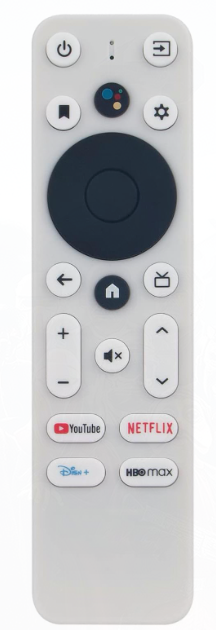
This is the remote used for everything on this page (white, Google Assistant button, YouTube / Netflix / Disney+ / HBO max buttons, advertises as Onn-Remote):
Affiliate link (advertising): if you buy through it, the author may receive a small commission. The price stays the same for you.
Pairing on Linux
You need a working Bluetooth adapter and bluez (bluetoothctl).
Put the remote into pairing mode: hold Back + Home together for 2–3 seconds until the remote enters pairing mode (the LED usually blinks). Pairing mode does not last long, so start the scan first and then put the remote into pairing mode.
- Start
bluetoothctland switch on the adapter and the agent:bluetoothctl [bluetooth]# power on [bluetooth]# agent on [bluetooth]# default-agent - Start scanning, then put the remote into pairing mode. It shows up as
Onn-Remote:[bluetooth]# scan on [NEW] Device AA:BB:CC:DD:EE:FF Onn-Remote - Pair, trust and connect (use your remote's address):
[bluetooth]# pair AA:BB:CC:DD:EE:FF Pairing successful [bluetooth]# trust AA:BB:CC:DD:EE:FF [bluetooth]# connect AA:BB:CC:DD:EE:FF [bluetooth]# scan off - Check the result - you should see
Paired: yes,Trusted: yes, the HID service and a battery percentage:[bluetooth]# info AA:BB:CC:DD:EE:FF Name: Onn-Remote Paired: yes Bonded: yes Trusted: yes Connected: yes UUID: Human Interface Device (00001812-...) UUID: Battery Service (0000180f-...) UUID: Vendor specific (ab5e0001-5a21-4f05-bc7d-af01f617b664) Battery Percentage: 0x64 (100)
Because the device is trusted, it reconnects on its own the next time you press a button. The remote goes to sleep after a short idle time; the first key press after that only wakes it up and is usually lost.
Scan finds nothing at all? Then the problem is probably your adapter, not the remote. Cheap "CSR8510" USB dongles are often counterfeit (Barrot 8041a02) and cannot receive advertisements reliably - see troubleshooting.
Why there are no key events on Linux
After pairing, BlueZ connects the HID service and hands the report descriptor to the kernel. For this remote the kernel logs:
hid-generic 0005:0957:0005.006E: item fetching failed at offset 22/23
hid-generic 0005:0957:0005.006E: probe with driver hid-generic failed with error -22
The descriptor is slightly malformed, so no input device is created and desktop shortcuts never see the keys. The good news: the remote still sends the HID reports as GATT notifications, and you can read them directly - no root, no kernel patch. That is what the Python examples do, using bleak.
GATT layout
| Service | Characteristic | Purpose |
|---|---|---|
| 0x1812 HID | 0x2A4D Report (several) | Key presses (notify) |
| 0x180F Battery | 0x2A19 | Battery level |
| ab5e0001-5a21-4f05-bc7d-af01f617b664 | ab5e0002 (write) ab5e0003 (notify) ab5e0004 (notify) | Google voice service (ATVV): commands, audio data, control messages |
| d343bfc0-5a21-4f05-bc7d-af01f617b664 | d343bfc1 ... bfc5 | Vendor-specific (not needed) |
Key codes
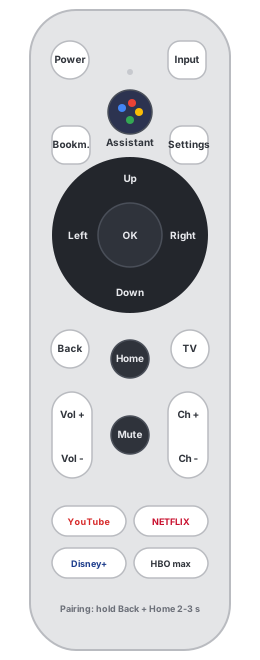
Every button arrives as an HID report on 0x2A4D. Short reports (2 or 4 bytes) carry a 16-bit usage of the Consumer Control page in the first two bytes (little endian); the volume keys use an 8-byte keyboard report instead. Releasing sends an all-zero report right away - the remote reports taps, not "held" keys. Codes were determined by pressing every button in a fixed order and logging the raw notifications.
| Button | Report (hex) | Usage | Notes |
|---|---|---|---|
| Power | 30 00 00 00 | 0x0030 | HID Power |
| Input | bb 01 00 00 | 0x01BB | |
| Assistant | 21 02 | 0x0221 | AC Search. Also sends ATVV control message 08 (start search) |
| Bookmark | 2a 02 00 00 | 0x022A | AC Bookmarks |
| Settings (gear) | 96 00 00 00 | 0x0096 | |
| D-pad Up | 42 00 00 00 | 0x0042 | Menu Up |
| D-pad Down | 43 00 00 00 | 0x0043 | Menu Down |
| D-pad Left | 44 00 00 00 | 0x0044 | Menu Left |
| D-pad Right | 45 00 00 00 | 0x0045 | Menu Right |
| OK (center) | 41 00 00 00 | 0x0041 | Menu Pick |
| Back | 24 02 | 0x0224 | AC Back |
| Home | 23 02 | 0x0223 | AC Home |
| TV | 8d 00 00 00 | 0x008D | Program guide |
| Mute | e2 00 00 00 | 0x00E2 | Mute |
| Channel + | 9c 00 00 00 | 0x009C | Channel Increment |
| Channel - | 9d 00 00 00 | 0x009D | Channel Decrement |
| Volume + | 00 00 80 00 00 00 00 00 | key 0x80 | 8-byte keyboard report, key in byte 2 |
| Volume - | 00 00 81 00 00 00 00 00 | key 0x81 | 8-byte keyboard report, key in byte 2 |
| YouTube | 77 00 00 00 | 0x0077 | |
| Netflix | 78 00 00 00 | 0x0078 | |
| Disney+ | 79 00 00 00 | 0x0079 | |
| HBO max | 7a 00 00 00 | 0x007A |
Decoding is a few lines:
def decode_key(data: bytes):
    if not any(data):
        return None                      # release
    if len(data) == 8:                   # keyboard report: volume keys
        return {0x80: "Volume +", 0x81: "Volume -"}.get(data[2])
    usage = data[0] | (data[1] << 8 if len(data) > 1 else 0)
    return CONSUMER.get(usage)           # table above
The microphone (ATVV voice protocol)
The Assistant button does not use a Bluetooth audio profile. Google remotes stream voice over BLE notifications using the ATVV ("Android TV Voice") service ab5e0001-.... Three characteristics matter:
| UUID | Direction | Use |
|---|---|---|
| ab5e0002-... | write | Commands to the remote |
| ab5e0003-... | notify | Audio frames |
| ab5e0004-... | notify | Control messages |
Commands (write to ab5e0002)
| Bytes | Command |
|---|---|
| 0a 00 04 00 01 | GET_CAPS - protocol 0.4, 8 kHz ADPCM. Send once after connecting; the remote answers 0b ... (frame size 134 bytes) |
| 0c 00 01 | MIC_OPEN - start streaming (8 kHz ADPCM) |
| 0d | MIC_CLOSE - stop streaming (also clears a stuck state) |
Control messages (notify on ab5e0004)
| First byte | Meaning |
|---|---|
| 08 | Assistant button pressed - answer with MIC_OPEN |
| 04 | Audio stream starts (reset your frame buffer) |
| 0a xx xx | Sync / timestamp, every ~350 ms while streaming |
| 00 | Audio stream ended - after MIC_CLOSE or the remote's own ~15 s limit |
| 0b ... | Reply to GET_CAPS |
Audio format
Frames of 134 bytes arrive split into six 20-byte notifications and one 14-byte notification on ab5e0003. Each frame is [0:2] sequence number, [2] stream id, [3:5] predictor (int16, big endian), [5] step index, [6:134] 128 bytes of IMA ADPCM (high nibble first) = 256 samples of 8 kHz mono, 32 ms per frame.
Two protocol quirks: (1) The remote never reports the release of the Assistant button. Use another key (OK) or a second press to end a recording. (2) The stream is cut off after about 15 s; send MIC_OPEN again on the 00 message to continue seamlessly (up to a minute works fine; a short gap can occur at the seams).
Python code
All code is in the examples folder. Install once:
git clone https://github.com/FloMaetschke/onn-remote-linux
cd onn-remote-linux
python -m venv .venv && .venv/bin/pip install -r requirements.txt
1. See every key press live
.venv/bin/python examples/01_listen_keys.py AA:BB:CC:DD:EE:FF

   3.21s  Up           (report 42 00 00 00)
   3.84s  OK           (report 41 00 00 00)
   5.02s  Assistant button (ATVV START_SEARCH)
   5.02s  Assistant    (report 21 02)
The core is a loop over all notifiable characteristics:
async with BleakClient(device(address), timeout=8) as client:
    for service in client.services:
        for char in service.characteristics:
            if "notify" in char.properties and char.uuid != ATVV_RX:
                await client.start_notify(char, on_report)
2. Record the microphone to a WAV file
.venv/bin/python examples/02_record_voice.py AA:BB:CC:DD:EE:FF
ready - press the Assistant button
recording - press OK to finish
saved: recording-1.wav (6.4 s)
The heart of it - open the mic on the button, decode frames as they arrive:
def on_ctl(_, data):
    if data[0] == CTL_START_SEARCH:                # Assistant button
        asyncio.create_task(send(CMD_MIC_OPEN))

def on_audio(_, data):                             # ab5e0003 notifications
    pcm.extend(frames.push(bytes(data)))           # -> 256 samples per frame

# ...later
write_wav("recording-1.wav", b"".join(pcm))        # 8 kHz, 16 bit, mono
3. Dictation into the focused window
03_dictation_service.py connects the remote to a speech-to-text tool. The tool records from the default microphone, so the service creates a virtual PipeWire/PulseAudio sink, plays the decoded remote audio into it, and temporarily makes its monitor the default source:
pactl load-module module-null-sink sink_name=onn_remote
pactl set-default-source onn_remote.monitor      # while dictating
pacat -p -d onn_remote --format=s16le --rate=8000 --channels=1   # decoded audio goes in here
Push-to-talk flow: Assistant starts the dictation tool, OK stops it and the text is typed into the focused window. Your normal microphone and shortcut keep working; the previous default source is restored after every run. It is written for Omarchy with omarchy-dictation / voxtype, but any command pair works:
ONN_ADDR=AA:BB:CC:DD:EE:FF \
ONN_START_CMD="my-stt start" ONN_STOP_CMD="my-stt stop" \
.venv/bin/python examples/03_dictation_service.py
With ONN_HYPRLAND=1 the D-pad also moves window focus and Channel +/- switches the workspace (Hyprland Lua dispatchers):
hyprctl dispatch 'hl.dsp.focus({ direction = "l" })'
hyprctl dispatch 'hl.dsp.focus({ workspace = "e+1" })'
Run it as a service
mkdir -p ~/.config/systemd/user
cp systemd/onn-voice.service ~/.config/systemd/user/
# edit ONN_ADDR and the paths in the file, then:
systemctl --user daemon-reload
systemctl --user enable --now onn-voice.service
journalctl --user -u onn-voice -f
The service reconnects on its own whenever the remote wakes up from standby.
Troubleshooting
"Device ... was not found" from bleak
The remote sleeps and does not advertise, so BleakClient("AA:BB:...") cannot find it in its scan cache. Build the device from BlueZ's object path instead (already done in atvv.device()):
from bleak.backends.device import BLEDevice
path = f"/org/bluez/hci0/dev_{address.replace(':', '_')}"
client = BleakClient(BLEDevice(address, "Onn-Remote", {"path": path, "props": {}}))
Key presses stop arriving after restarting your program
After several quick restarts BlueZ can stop forwarding notifications although the remote still shows Connected: yes. Reset the link:
bluetoothctl disconnect AA:BB:CC:DD:EE:FF
# restart your program, then press any button on the remote
Sending MIC_CLOSE right after connecting (as the examples do) also clears a stuck voice state; the remote answers with 00.
Scan finds no devices at all / adapter problems
Cheap "CSR8510" USB dongles are frequently counterfeit clones (Barrot 8041a02). The kernel says so:
Bluetooth: hci0: CSR: Unbranded CSR clone detected; adding workarounds and force-suspending once...
Bluetooth: hci0: CSR: Couldn't suspend the device for our Barrot 8041a02 receive-issue workaround
These chips cannot receive advertisements reliably, there is no firmware update, and behind USB hubs the workaround often fails. Use a dongle with a Realtek RTL8761B chipset (e.g. TP-Link UB500), which is supported by the mainline kernel out of the box.
The first key press after some idle time does nothing
Expected: the remote wakes up and reconnects with that press. Press again.
Dictation returns "Thank you." or other filler on silence
Whisper-style models hallucinate on silence. If a recording contains no speech, stop it with OK right away, or check the recorded audio with 02_record_voice.py.
Discovering codes for a different remote
Run 01_listen_keys.py, press each button twice with a pause in between, and note the raw reports. Group by pauses; keys pressed less than ~2 s apart run together in the log.